
Features
Nestomatic fits real part shapes onto your sheet, so you cut more and waste less. It runs in your browser. There is nothing to install, and your files stay on your computer.
- Free
Free is for trying Nestomatic on your own parts.
- Pro
Pro is for makers and shops who cut every week - on sale now.
Free accounts are open to everyone. Pro is on sale now - see the pricing page.
Nesting
-
True-shape nesting
Free and Pro
Nestomatic places the real outline of each part, not a rectangle around it. Holes in a part stay holes. The nest runs on your computer, so you can try a layout without sending your drawings anywhere.
-
Fast, Balanced, and Precise
Fast on every plan. Balanced packing and precise packing on Pro.
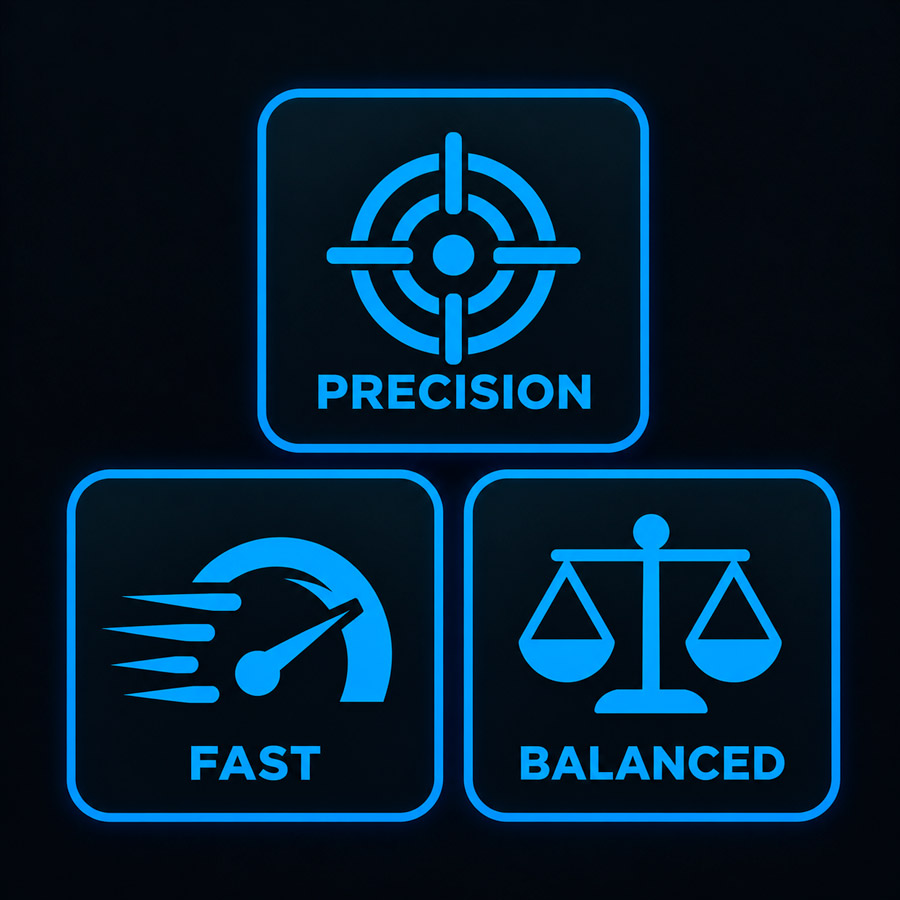
Pick how hard Nestomatic works on your layout. Fast gives you a layout in moments. Balanced takes a little longer and turns parts so they sit tighter. Precise tries more layouts and finer turns, for when the material is expensive and an extra minute is worth a shorter sheet.
-
Part rotation
None, 180° and 90° steps on every plan. Part rotation in 60° and 45° steps, part rotation in 15° and 5° steps, and 1 degree rotation on Pro.
Choose how far each part may turn, from locked in place down to one-degree steps. On a simple job you can keep it to quarter turns.
-

Part-in-Part
Pro
Smaller parts sit inside openings and holes. The scrap in the middle of a frame becomes usable material instead of offcut.
-
Fill gaps
Pro
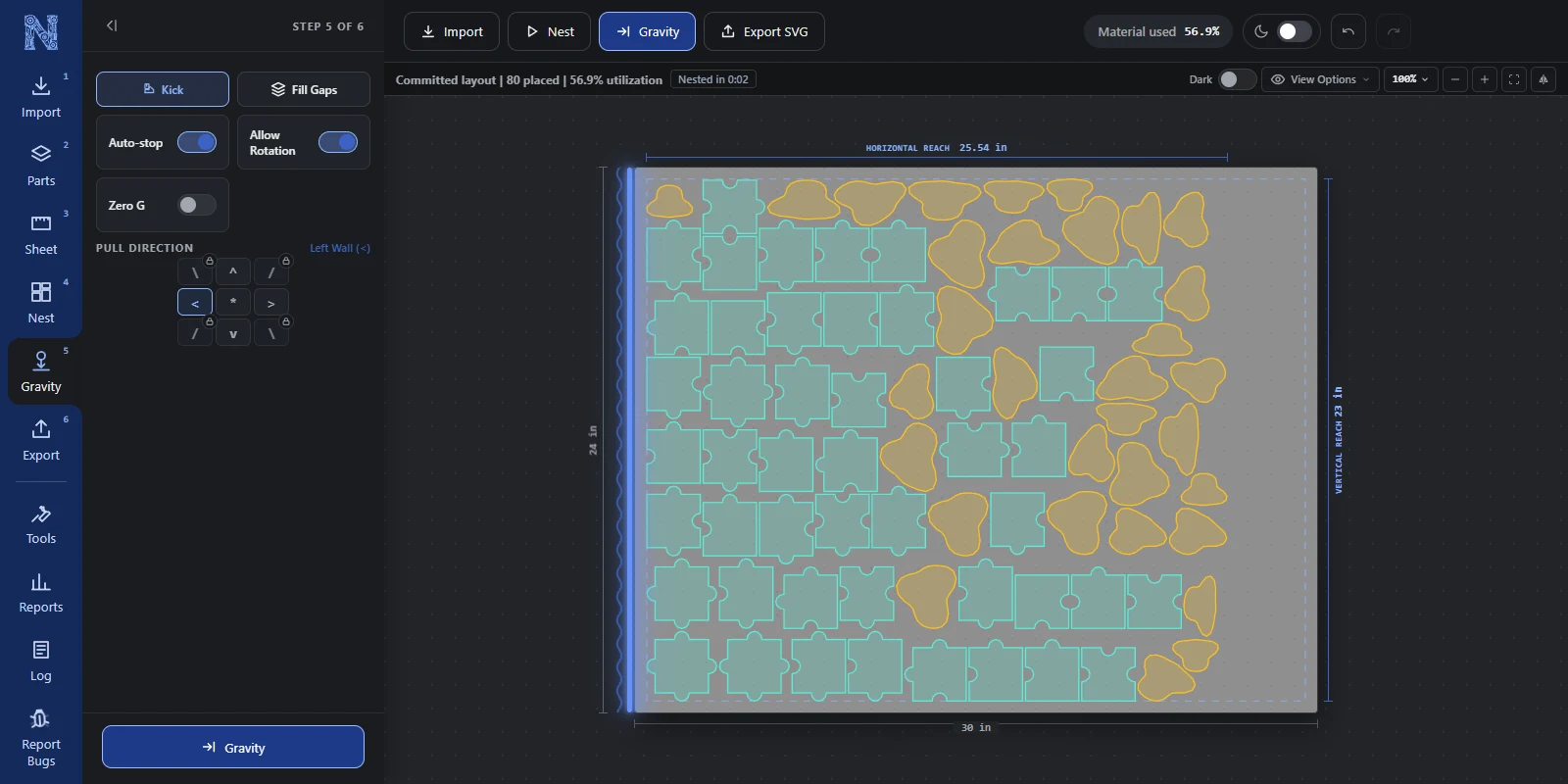
After the first layout, Nestomatic moves pieces into the gaps and holes it left behind, so the sheet comes out tighter than the first pass.
-
Fill direction
Edges, corners and centre on every plan.
Pack the nest toward an edge, into a corner, or toward the middle of the sheet.
-

Fill Container
Pro
Pick a shape and fill it with your parts. Fill inside it, such as a maple leaf made of small leaves, or fill around it and keep the shape clear. The sheet can be sized to fit the shape.
-
Mirrored set
Pro
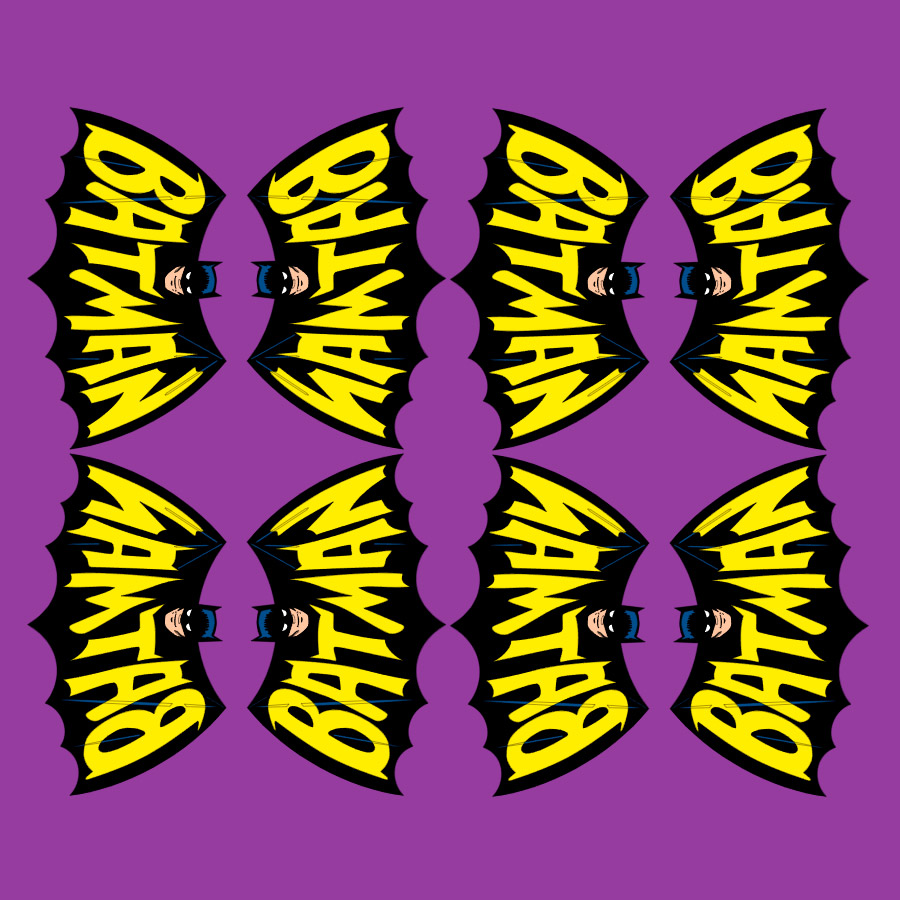
Cutting left and right pairs? Turn on Mirror for a file and pick the axis: Hor flips left to right, Vert flips top to bottom. Nestomatic adds the mirror copy of every part, and each part nests together with its copy as one set, so pairs always come out together. Perfect for symmetrical pieces, matched sets, and anything that needs a left and a right.
-
Layout modes
Smart Nest, Grid, Hex, Brick and Center on every plan. Knolling layout, random fill, greedy layout, spline layout, and Guillotine (saw cuts) on Pro.
Smart Nest packs for the least material. The other modes lay parts out a set way: Grid, Hex and Brick repeat them in rows, Aligned rows (knolling) squares them up for looks, Random fill scatters them over the sheet or a shape, Greedy keeps each part's copies together, Center packs from the middle out, Guillotine keeps every cut straight across for a panel saw, and Spline strings parts along a line you draw.
Sheet and parts
-
Spacing and gap check
Free and Pro
Set the gap between parts and the margin at the edge of the sheet. Before you export, Nestomatic checks that nothing sits too close. You can fix the spacing, or export anyway.
-
Sheet size
Every plan. Export size depends on the plan.
Set the sheet to the size you actually cut. Free can export up to 24 x 24 in (610 x 610 mm). Pro has no export size cap. Saved size presets are on every plan, and flipping the sheet between portrait and landscape works on every plan.
-
Extra sheets
Pro
When the parts do not fit on one sheet, Nestomatic continues onto the next. Free stays on a single sheet.
-
How many parts
Free up to 100 on a sheet. Pro has no cap.
Bring in as many parts as the job needs. Free nests up to 100 parts on a sheet, and Pro does not cap the count.
-
Keep-out zones
Pro
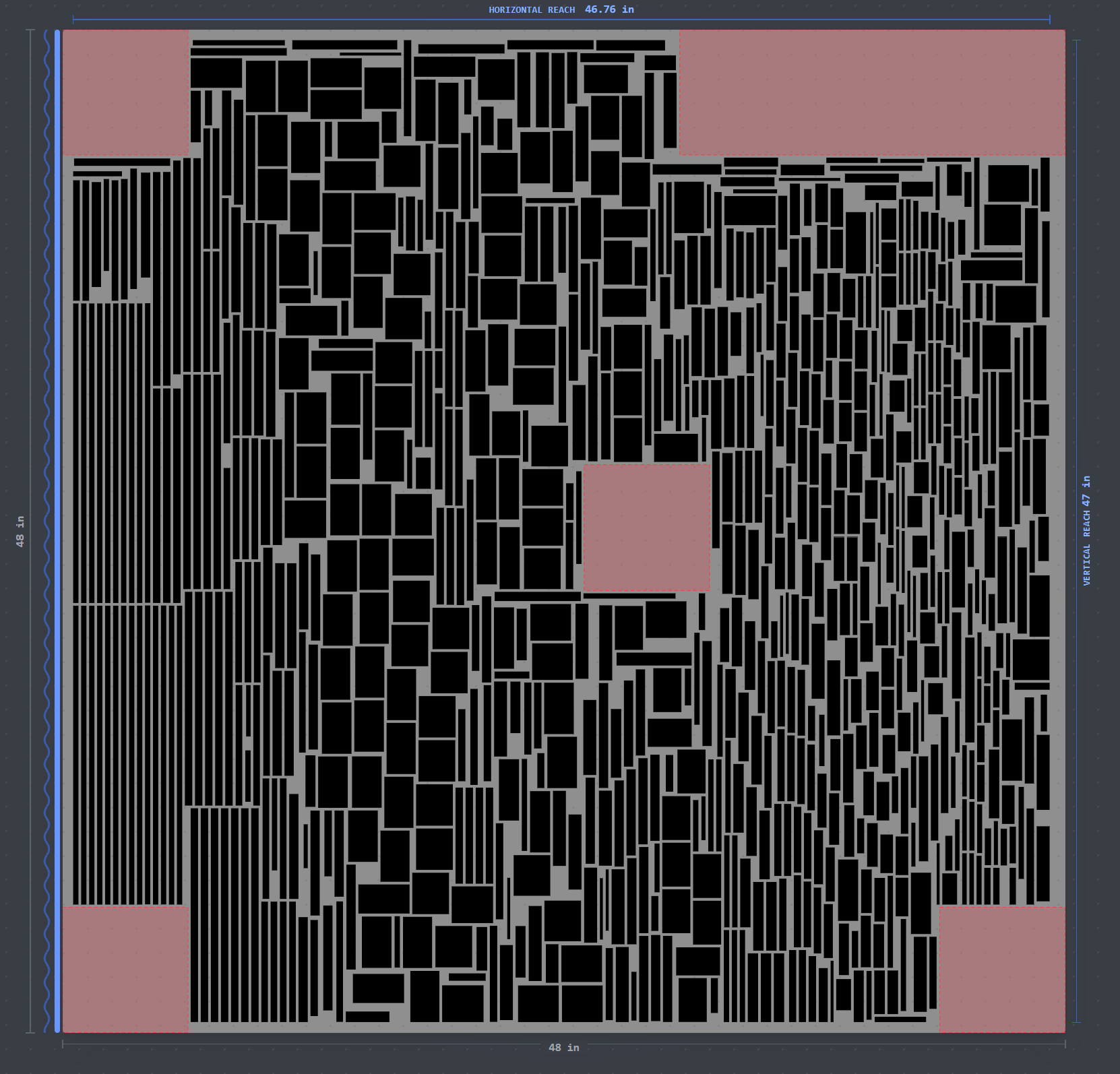
Load a drawing whose shapes are areas the nest must avoid, such as clamps, tabs, or damaged corners. Parts are placed around them and never cross them.
Files
-
Bring in your drawings
SVG import on every plan. DXF, AI, LightBurn, PDF, EPS, and CorelDRAW import, paste from Illustrator, and Multi-file import on Pro.
Drop in a drawing and Nestomatic reads the closed shapes as parts. Adding more files to a job you already started is on Pro. On Free, a new file starts a fresh job.
-
Shape generator
Every plan.
No drawing to hand? Make a rectangle, circle, oval, triangle, polygon, star, gear, spiral or a line of text, at the size you type, with an inset hole if you want one, and add it as a part. The same shapes can be the sheet or a Fill Container shape on the plans that have those.
-
Export
SVG and JPG export on every plan. DXF, PNG, AI, PDF, and EPS export on Pro.
Download the nested sheet and open it in the software you already cut with. On Free: Unlimited exports. Pro too. A zip with one file per sheet is on Pro, and part names on their own layer are on Pro.
Your jobs
-
Quantity, scale, and Max Fill
Quantity and scale on every plan. Max Fill on Pro.
Set how many of each part you need, and scale a part up or down. Max Fill keeps adding whole sets until the sheet is full.
-
Undo
Free and Pro
Step back through part moves, sheet changes, and quantity edits, then step forward again if you want the last layout back.
-
Labels and saved settings
Part labels and settings presets on Pro.
Print part names on the export, and save the sheet size, spacing, and quantities so the next job starts where this one left off.
-
Kerf and cut lines
Kerf and cut lines on Pro.
Set the cutter's kerf so the spacing is never less than the cut width, and write the cut lines your cutter reads.
For shops
-
Common Line
Pro
Where two parts share a straight edge, Nestomatic cuts that line once. Curved edges keep their normal gap, so you save cuts without pulling parts apart.
-
Order batching
Order batching on Pro.
Give each file an order (a customer or job number). Parts of one order share a colour on the sheet and a row in the report.
-
Placement templates
Placement templates on Pro.
Load a drawing of circles and the parts are placed on them, one part per circle.
-
Reports
Pro
Open a report for the job, with the summary, the parts, the cost, and who is cutting. Download the parts list when you are ready to take it to the machine. A printable shop report is still on the way.
Try it on your own parts
No install. Try nesting free. An account is needed to download your nest.
We only email sign-in links and account notices. No marketing, and we never sell it or share it for marketing.